
Traditionally, for those who travel but would love to get into their regular local repeaters, two technologies were the default. First was the IRLP or Internet Radio Linking Project, which required very specific hardware and was focused on repeater-to-repeater internet linking instead of the end-user. Echolink was developed to bridge that gap, and has been the standard since it’s inception around 2002. Somewhat concurrently, AllStarLink was founded and ultimately focused on repeater controls and linking, but in recent years, many improvements have been made to allow end-user direct access of public nodes. AllStar uses far better and newer audio codecs than any project before it, and operates under a decentralized network infrastructure, allowing it to handle far more users and bandwidth while maintaining audio quality.
Echolink? Nah. Let’s do AllStar.
Web Transceiver Mode
Web Transceiver mode refers to connecting to a node in a public way. It uses your allstarlink.org username and password to pull a “token” which allows you to freely use a configured AllStar node without having each one’s personal passwords. It doesn’t allow you to change any settings or modify it in any way, but you can talk on it just like your local repeater.
Enter DroidStar
DroidStar is a feature-rich and cross-platform app for Android, iOS, Windows, Mac, and Linux. Download a build from HERE.
Side-loading apps onto Android and iOS phones is beyond the scope of this document, however, you may be able to follow the directions for Android HERE, and for iOS HERE.
For Android users, DroidStar is also on the Google Play store.
iOS IMPORTANT NOTE: The version of DroidStar available on Apple TestFlight is NOT by the original developer, does not contain support for AllStar, and does not work for this purpose. Use the RepeaterPhone instead.
Initial Setup
Upon launching DroidStar, you’ll be greeted with the main window:

Click the Settings tab:
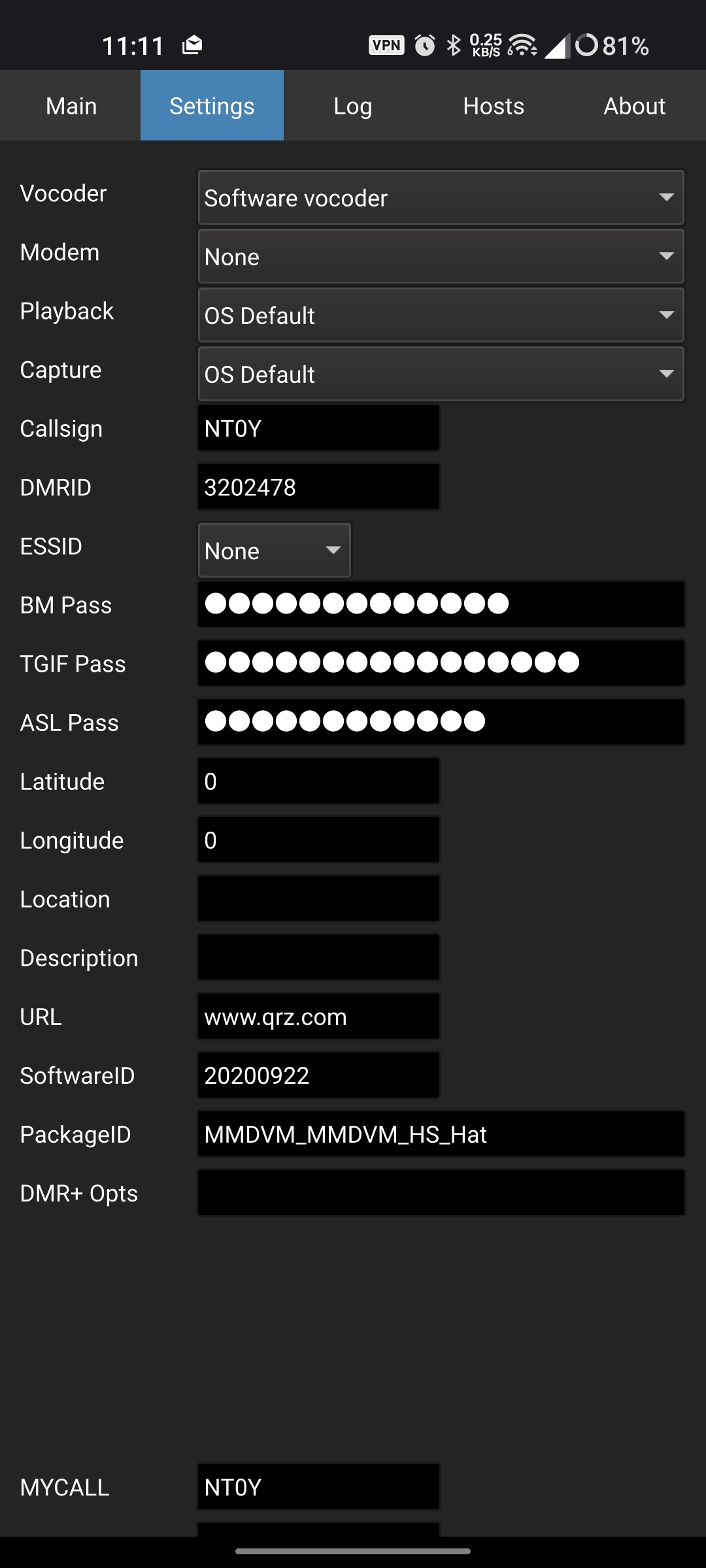
I have some additional settings in this screenshot that aren’t at all necessary for connecting to AllStar. Just fill out your Callsign and ASL Pass. These are the same credentials that log you into the allstarlink.org website. If you don’t have these, sign up for an account first.
Next, let’s head to the Hosts tab:
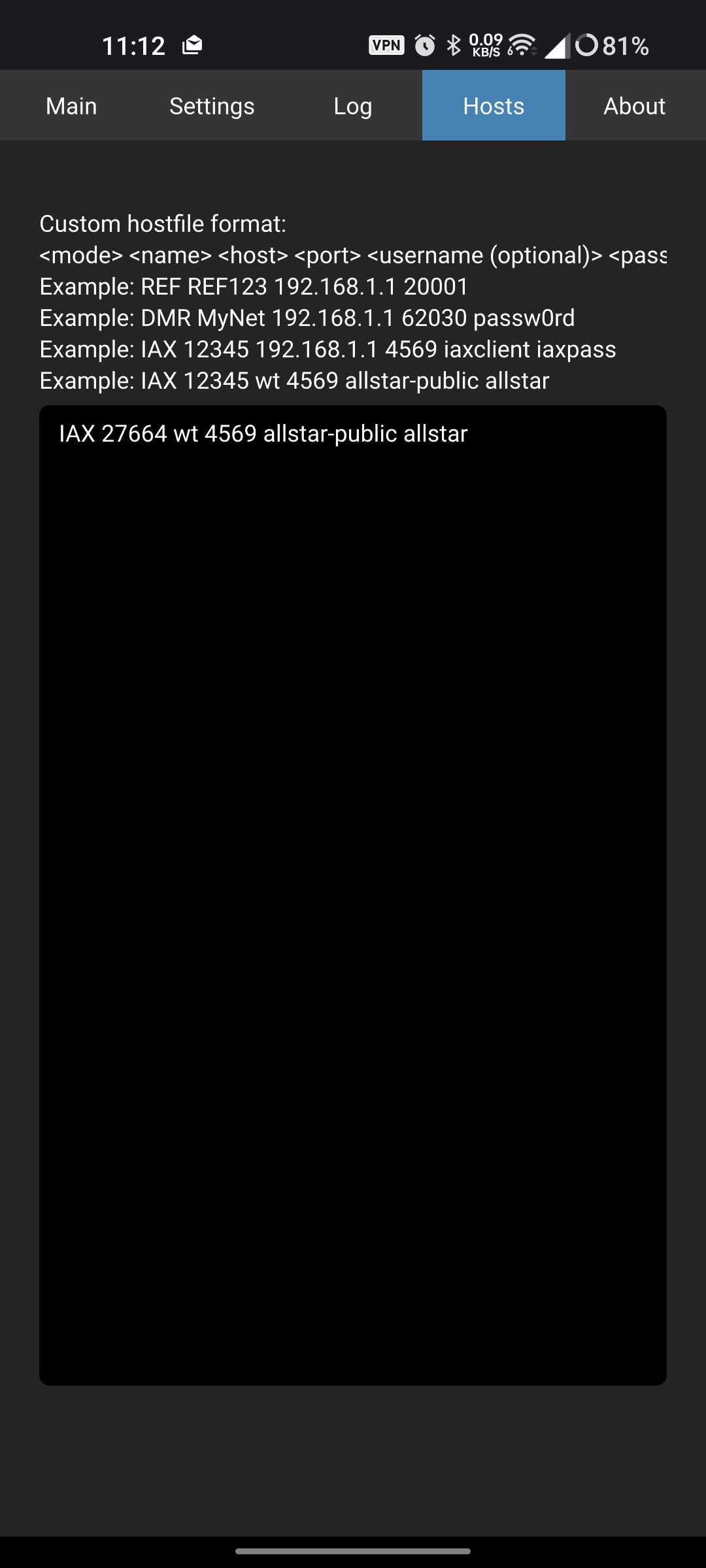
This is the part that people stumble over, so let’s get it right. There should only be a single line here for our purposes and only a single part of it will change.
IAX ##NODENUMBER## wt 4569 allstar-public allstarType in the line EXACTLY as above, except insert the AllStar node number you wish to connect with instead of ##NODENUMBER##. Absolutely everything else stays the same. Node 27664 connects to my target node W8MSU, so I’ll put that there in my case:
IAX 27664 wt 4569 allstar-public allstarThe username and password parts of that line DO NOT CHANGE. These are the default Web Transceiver credentials for accessing public nodes. If the administrator of the node changed them, they don’t want you in there.
Back to the main screen, we’ll make our first connection:
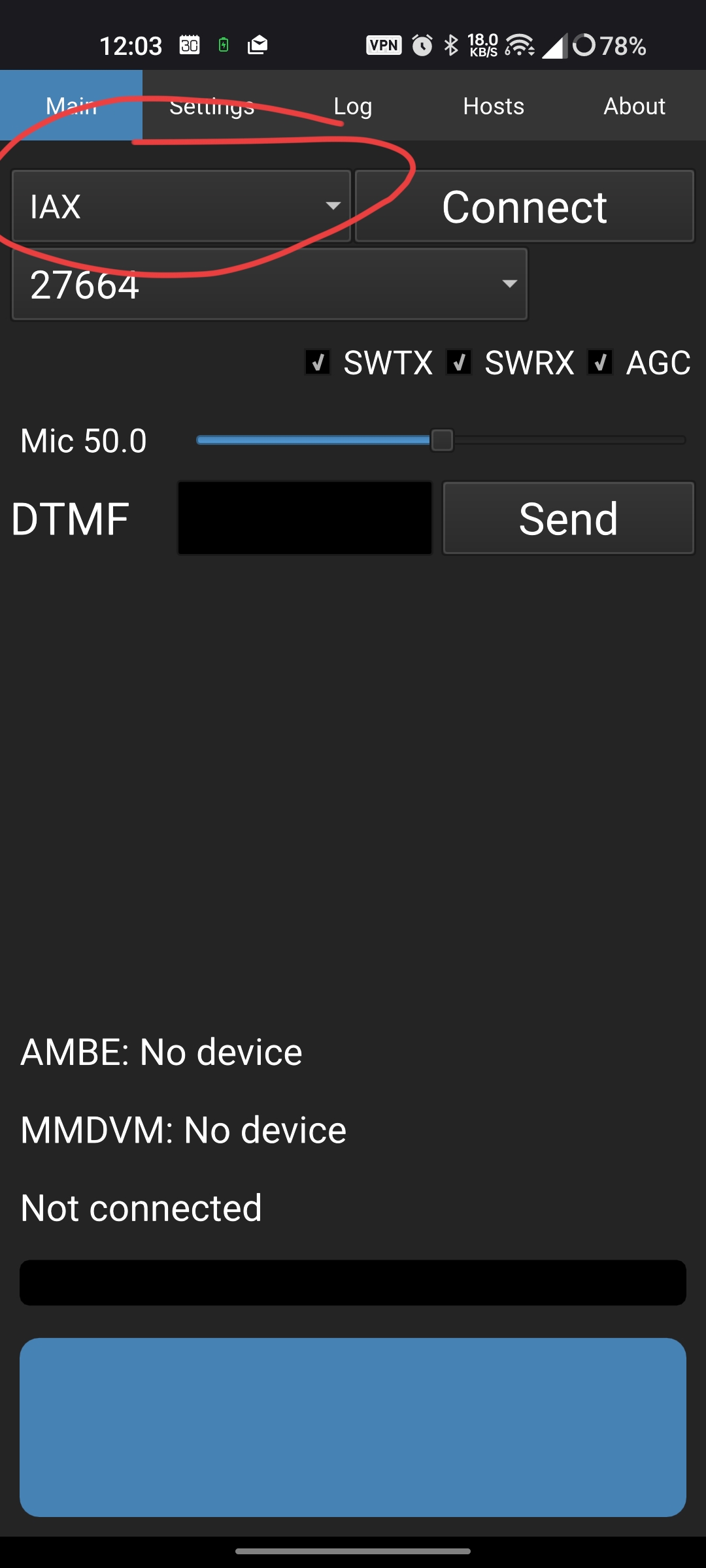
The circled dropdown in the upper-left corner of the app is where you’ll change your connection type. Change to “IAX”, which is the underlying protocol for AllStar. Your selected node number should then appear in the dropdown right under it. Click “Connect”.
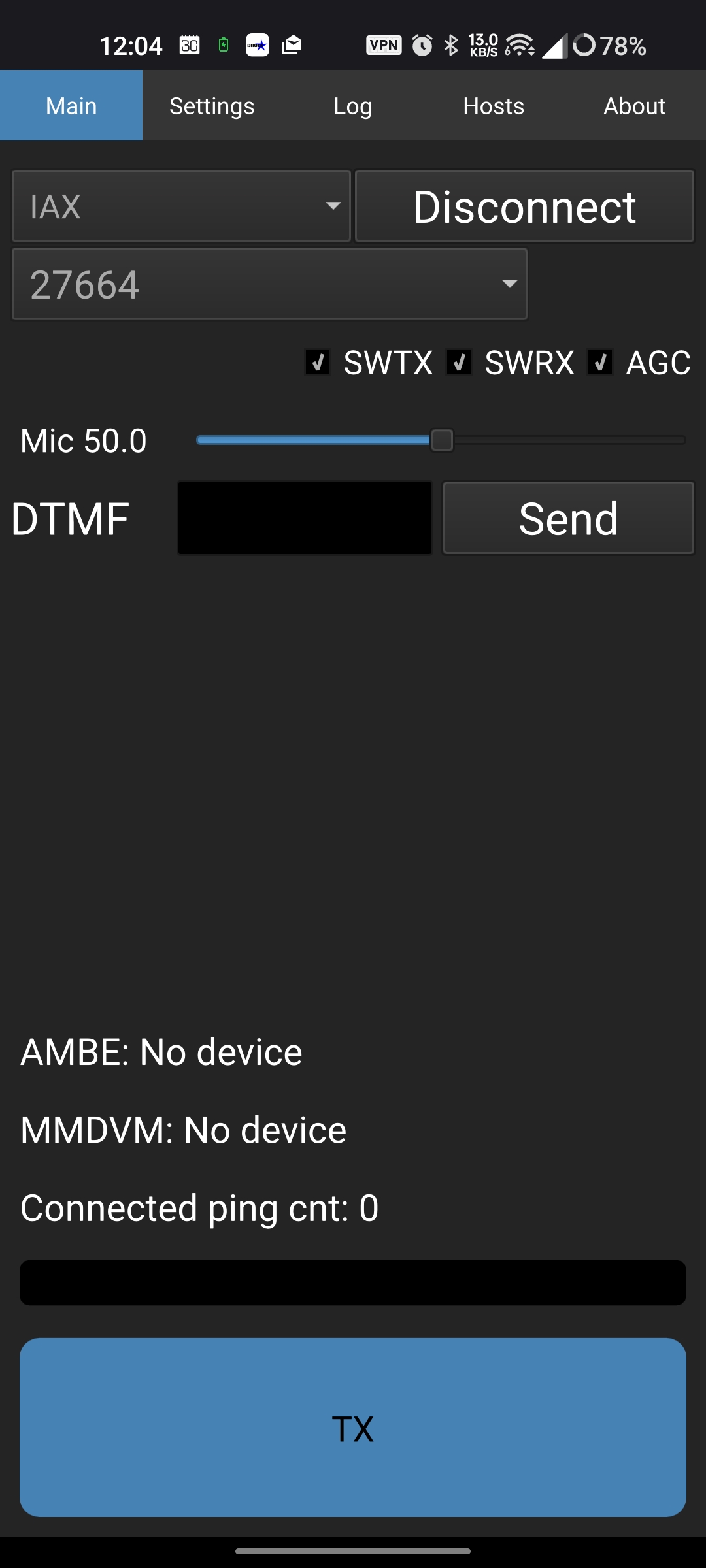
Three things should happen. As above, the “Connect” button will change to read “Disconnect”. Second, the PTT button at the bottom will contain the text “TX”. Third, you will hear the name of the node in audio form. You should be ready to transmit!
If for some reason it didn’t work, check the log:
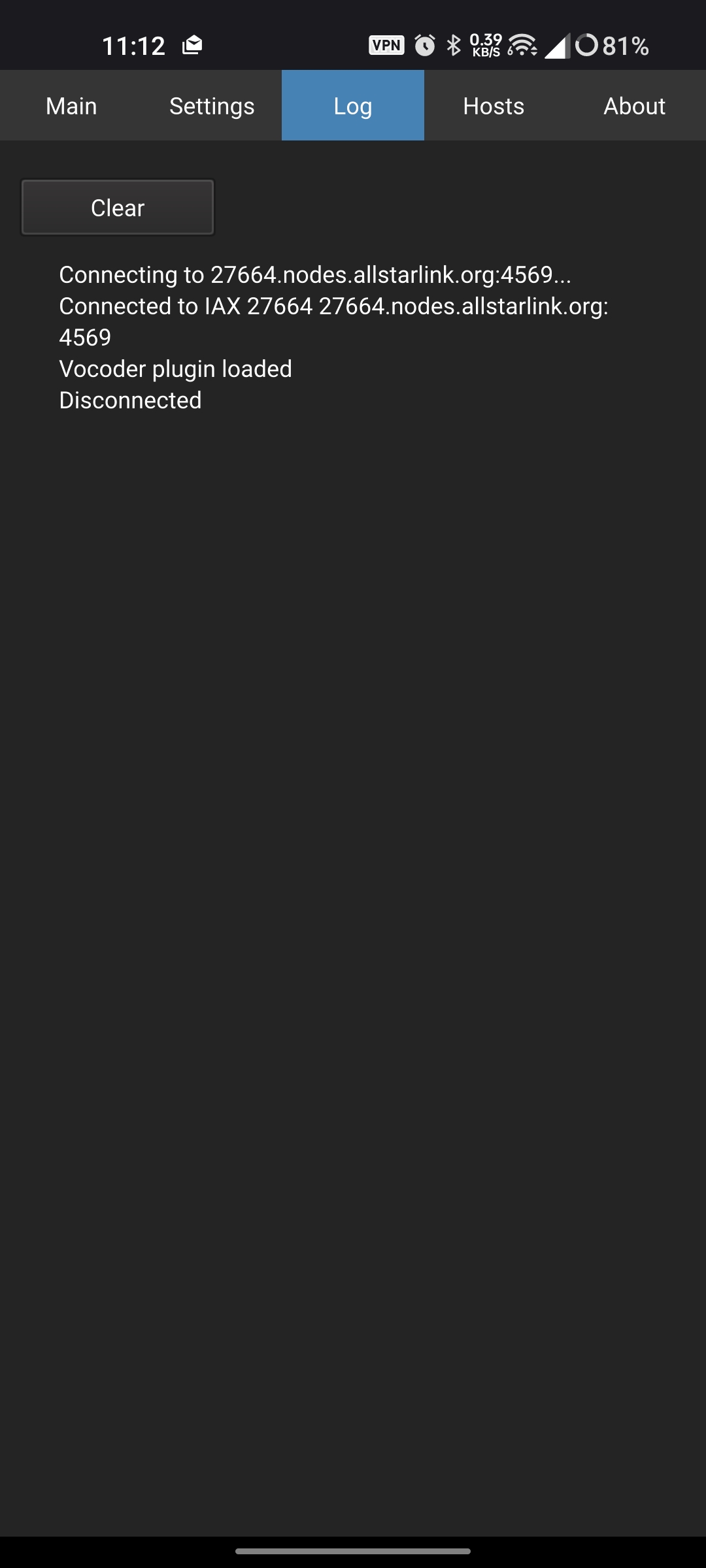
This should tell you exactly what happened, including where it tried to connect, and any error messages from the AllStar node.
Very Basic Troubleshooting
There have been reports that overly complex passwords can result in login failures. My recommendation would be to omit any special characters and keep the length to 12-14 characters long.
Additionally, AllStarLink has a lot of places to put passwords, including the website login, individual node passwords, and more. You might have logged 3 or 4 passwords, all different, which serve some sort of functionality if you own a hardware AllStar node. You don’t need any of them but one for this purpose. The correct password is the one that logs you into the allstarlink.org website!
If for some reason you still can’t connect, you may well have a networking issue. For example, I sometimes have issues connecting over a cellular network because of something called “CG NAT” or carrier grade network address translation. You can potentially get around this with a VPN. Be sure your path to port 4569 is clear to the outside world. How to do this is beyond the scope of this document.
Good luck and happy rag chewing!
References
https://github.com/nostar/DroidStar
https://www.howtogeek.com/313433/how-to-sideload-apps-on-android
https://en.wikipedia.org/wiki/Internet_Radio_Linking_Project