
Slow-scan TV, still going strong
Slow-scan television sends a still picture over an ordinary voice channel. A radio, a sound card and a computer are all it takes to send a photo of your shack, your antenna or your QSL card across the band. Analog modes such as Martin, Scottie and PD take from under a minute to a few minutes per picture and degrade gradually as the signal gets worse. HAMDRM, also called digital SSTV or DSSTV, sends an error-corrected digital image, with pixel-perfect reception every time.
Activity clusters on a few HF frequencies. 14.230 MHz USB is the 20 m analog SSTV calling frequency, with digital SSTV on 14.233 MHz. Other common ones are 21.340 and 28.680 MHz USB, and 7.171 and 3.845 MHz LSB.
Doesn’t QSSTV already exist?
It does, and it’s a solid foundation. QSSTV by Johan Maes, ON4QZ, is a well-established SSTV and HAMDRM program that is compatible with most of MMSSTV and EasyPal. Its HAMDRM code comes from RX/TXAMADRM by PA0MBO. Everything in this list was already in QSSTV 9.5.11:
- The Martin, Scottie, Robot, PD, Wraase SC2, Pasokon, AVT, BW, FAX480 and MP/MR/ML/MC mode families
- HAMDRM (DSSTV) send and receive
- A picture gallery and viewer, and TX templates with macros
- Rig control through Hamlib, CAT, RTS/DTR and VOX PTT, plus XML-RPC remote control
- CW and FSK identification, and a waterfall, spectrum and scope display
What QSSTV-Experimental is
QSSTV-Experimental is a fork of QSSTV 9.5.11 that keeps all of that and builds on it. It is free software (GPL v3) that runs on Windows, Linux and macOS, and it adds new modes, new ways to send and receive, a rebuilt template editor and more. The rest of this article is what is new, and what it means at your radio.
What’s new, and what it does for you
Shorter pictures with JB60 and PD120W
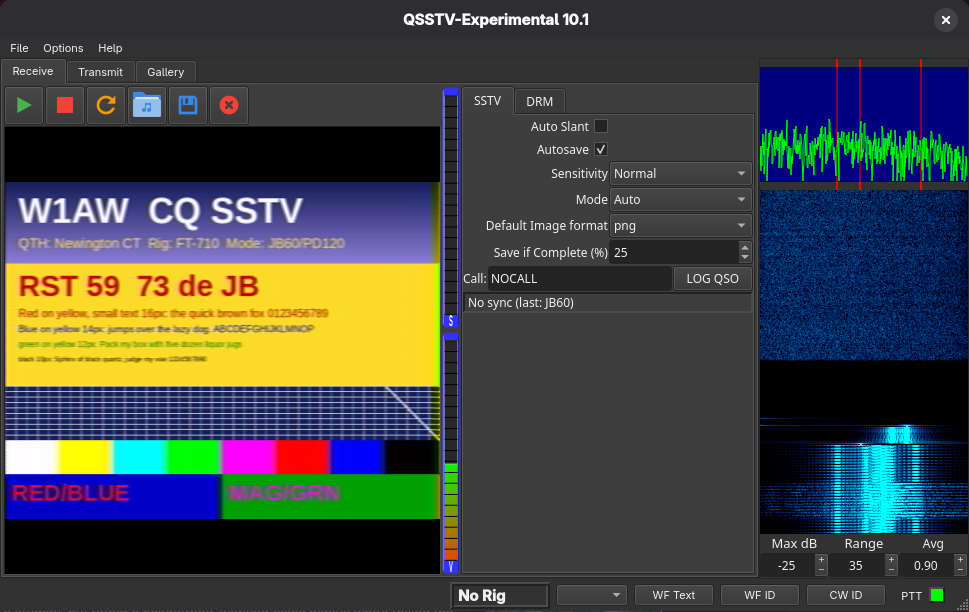
JB60 is an experimental mode that sends a 640×496 color picture, the same size as PD120, in about 61 seconds, roughly half the time. The trade-off is slightly softer color edges. No other SSTV program decodes JB60, so use it with stations who also run QSSTV-Experimental. PD120W is a 16:9 version of PD120 (768×432, about 131 seconds), made for widescreen photos.
Headless operation
File > Decode SSTV From File plays a WAV, MP3, FLAC, OGG or AAC recording through the receiver at about ten times real time. Use it to practice, to check your setup without waiting for a signal, to decode what an SDR recorded, or to see what the other station actually sent. Leaving the house? --listen receives from your sound card with no window and saves every picture it hears, so you come back to a folder of pictures. --batch decodes files and sets an exit code that scripts can check, and --encode turns a picture into a WAV. From the AppImage, run the AppImage file itself with the same options.
qsstv-experimental --listen --device "USB Audio" --out-dir pictures/
qsstv-experimental --batch -o pictures/ pass1.wav pass2.mp3
qsstv-experimental --encode rose.png --mode PD120 --wav-out pd120.wav
Send composite images and use modern image formats
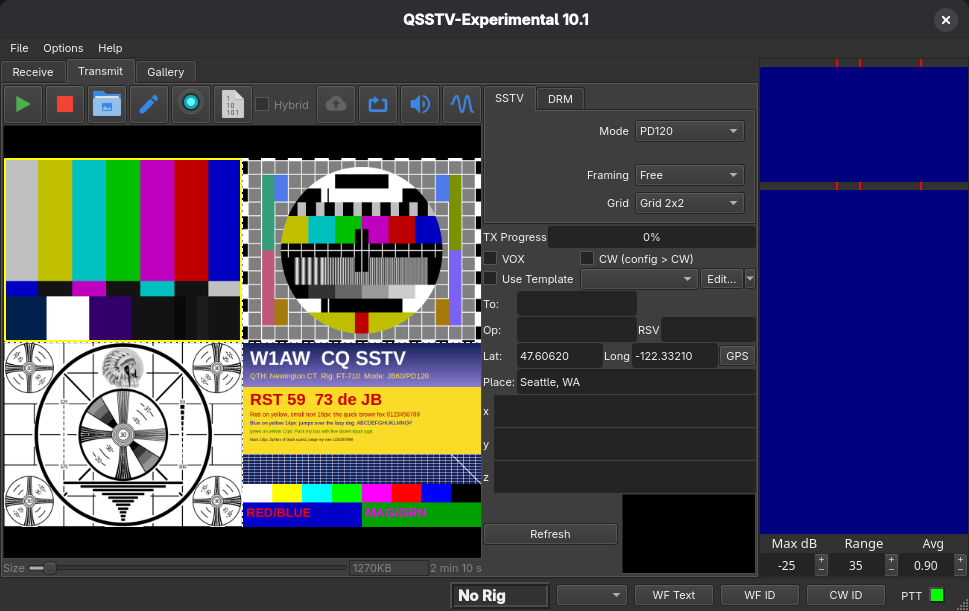
PD120 and the other large modes can carry two or four pictures in one transmission, as a 1×2, 2×1 or 2×2 grid, so a single transmission can show your antenna, your radio, the view and your QSL card. Set Framing to Free, then zoom with the mouse wheel and drag the picture until it sits in the frame exactly where you want it. Copy a picture from anywhere and paste it straight into the Transmit tab. Phone-camera formats such as HEIC, WebP and AVIF open in an SSTV app for the first time. The pencil button opens a copy in your own photo editor, and your original is never touched.
New modern template editor
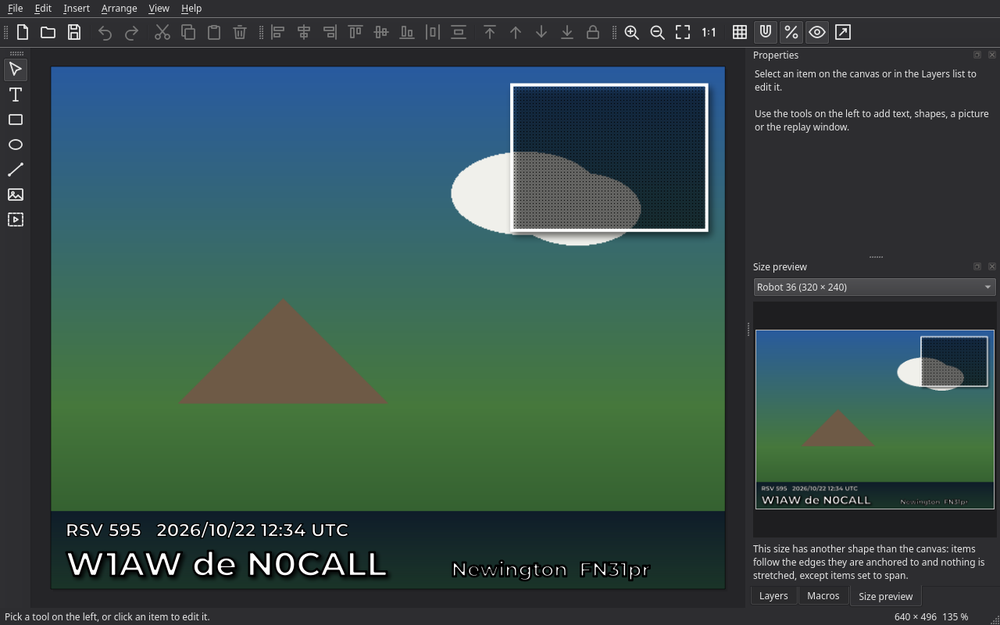
A template lays text, shapes and logos over the picture as you transmit: your callsign, the other station’s callsign and report, the date and time. The new editor makes that easy, with undo and redo, snapping, starter templates so you are not facing a blank canvas, and text boxes that shrink to fit. A size preview shows how the template will look on any SSTV mode, and because items are anchored to the edges, one template keeps its proportions on a wide mode and a small one. Your old .templ files still open.
GPS capabilities
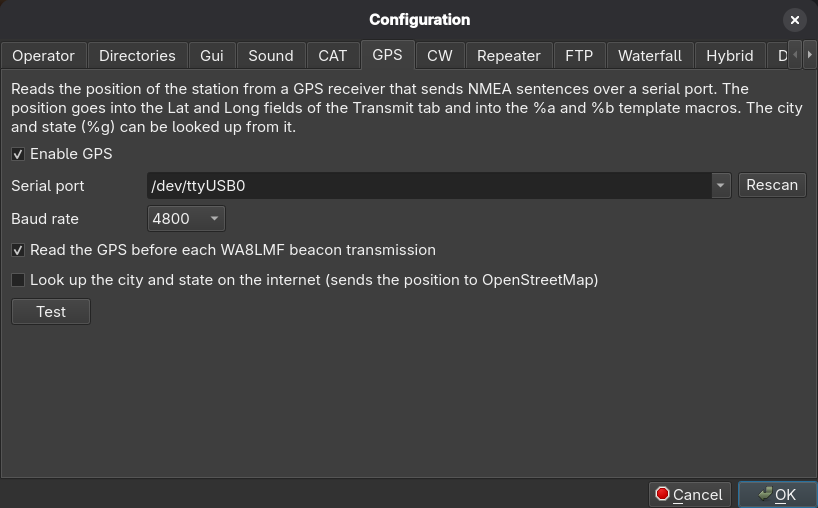
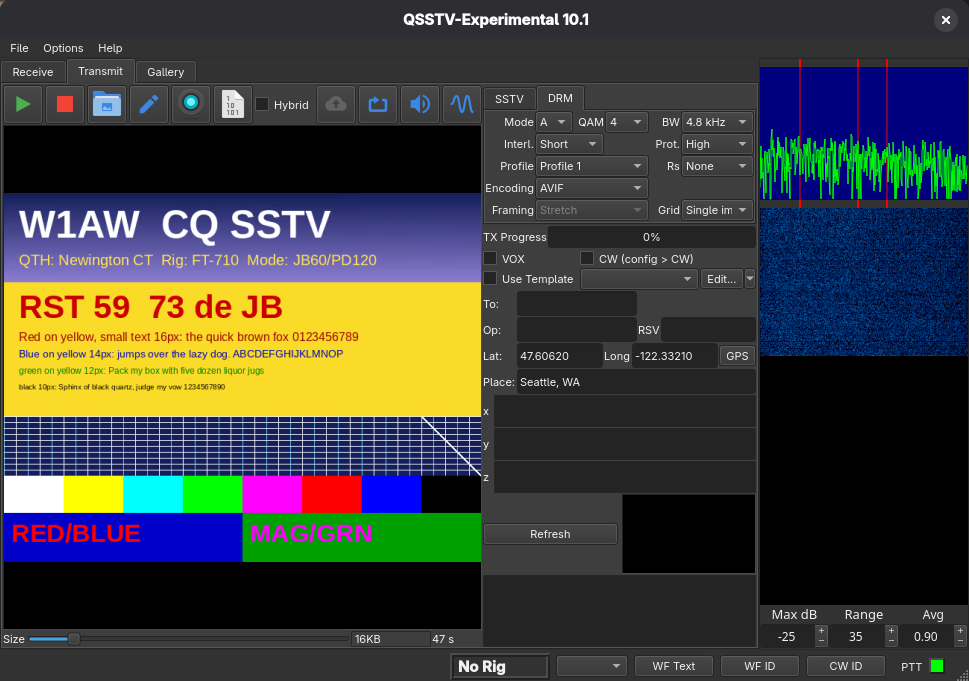
Operating portable or mobile? Connect a serial or USB GPS receiver and press the GPS button on the Transmit tab. Your latitude and longitude go into the template, and so can your city and state, such as “Seattle, WA”. No GPS? Type your position once and it’s remembered. The city lookup is optional and off by default: it sends your coordinates to OpenStreetMap, so tick it only if you’re comfortable with that.
Beacon mode
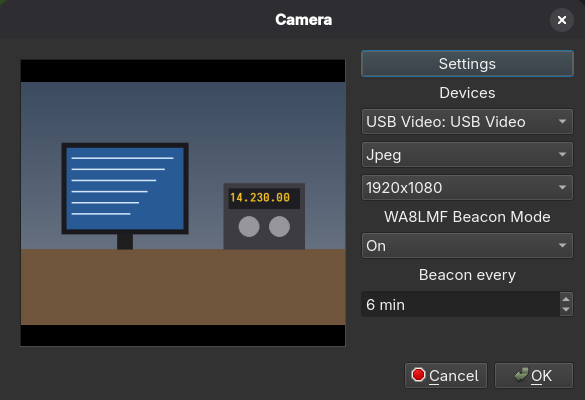
WA8LMF Beacon Mode takes a picture from your webcam every 1 to 60 minutes and transmits it, which is handy from a mobile or portable station to attract a reply. It uses whatever mode, template and size you have selected, shows a countdown to the next picture, and can refresh your GPS position before each one. An unattended transmission is still yours: follow your licence conditions and identify, for example with a callsign template.
Progressive reception DSSTV, new formats, more bandwidth
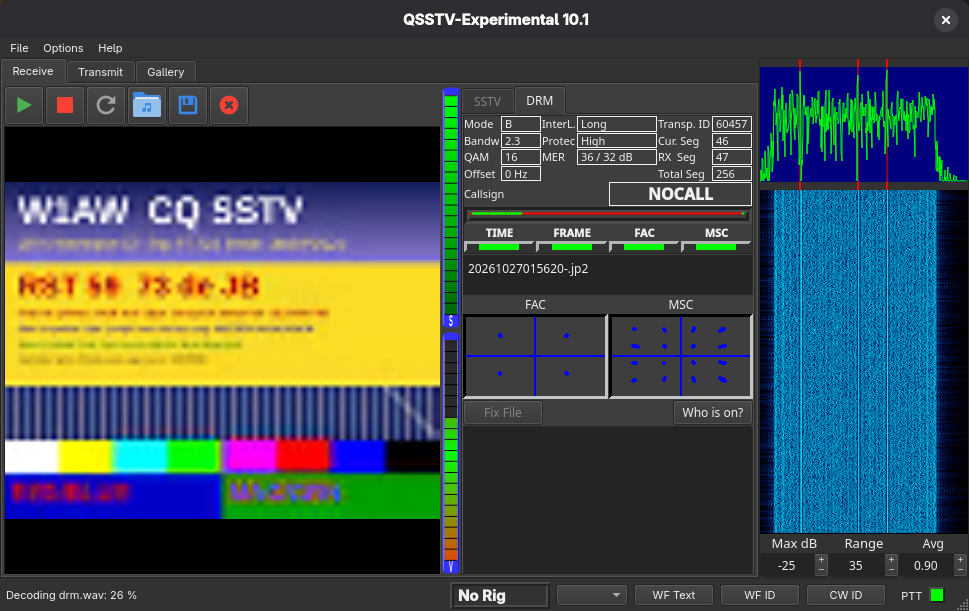
With the default JPEG2000 encoding, a HAMDRM picture appears as a preview that sharpens while the data arrives, so you see it taking shape instead of waiting for the end. When you send, the size slider previews the exact picture that will go out, so you can trade quality against transmit time before you press the button. AVIF is a new encoding that often gives cleaner pictures than JPEG2000 at small sizes. It has no progressive receive like JPEG2000, however it’s 15-30% smaller at the same quality. On VHF/UHF FM, the new 4.8 kHz bandwidth sends roughly 1.5 to 2 times faster, but both stations need QSSTV-Experimental 10.1 or later. On HF, stay with 2.3 or 2.8 kHz, per local regulations.
New sound card calibration methods
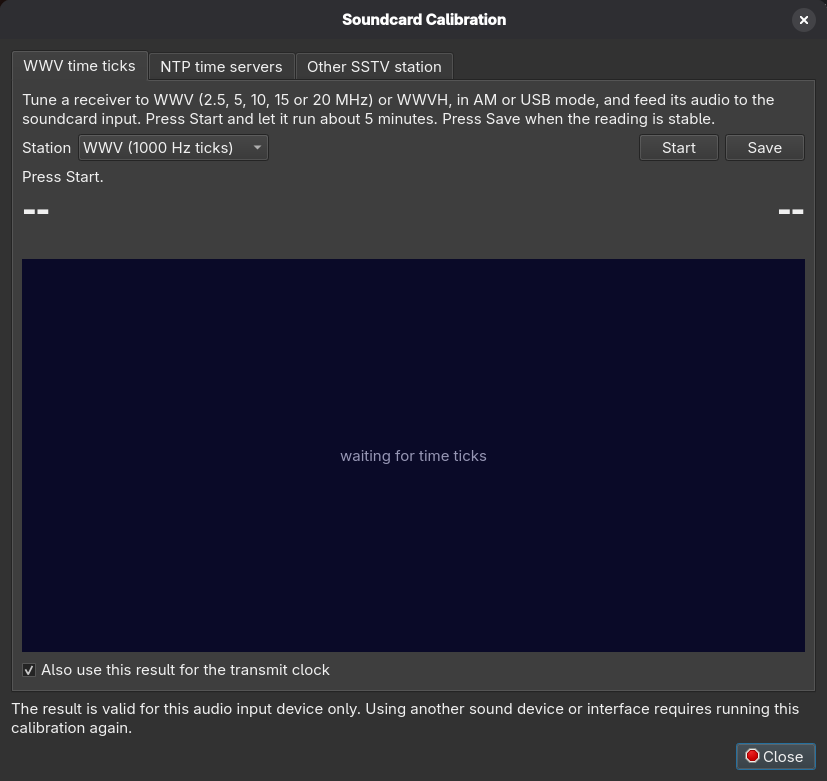
If received pictures lean, your sound card’s clock could be slightly off. Options > Calibrate measures it and applies the correction to both receive and transmit. Feed it a receiver tuned to WWV and wait about five minutes, or use no radio at all and let it compare against internet time for about 30 minutes. It is a one-time job for each sound device.
Improved gallery and QSO logging
In the gallery, select several pictures with Ctrl or Shift and delete them in one go with the Del key, or send them to the Transmit tab. The viewer zooms with the mouse wheel and pans by dragging. Log a QSO and the program sends an ADIF record over UDP (port 2333 by default) to any logger that listens for one, on every operating system.
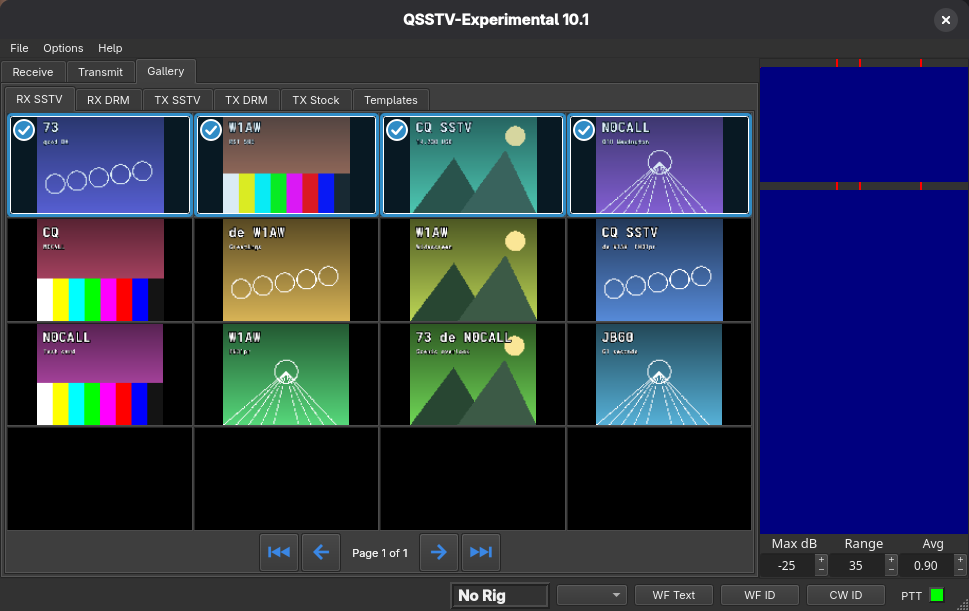
The small things help too. The program follows your desktop’s light or dark theme, has its own User’s Guide built in, and tells you when a new release is out. 10.1 also carries many bug fixes.
Let’s get it running
Download your build from the GitHub Releases page:
- Windows 10 or 11: run the installer. It is not code-signed, so SmartScreen may warn: choose More info, then Run anyway.
- Linux: download the AppImage, make it executable with
chmod +x, and run it. It runs on Ubuntu 24.04, Fedora 39 or similar distributions, and anything newer. - macOS 15 or later (Intel and Apple Silicon): several users have tested it and confirmed it works.
Then set it up once, under Options > Configuration:
- On Operator, enter your callsign, name, QTH and locator.
- On Sound, choose the input and output devices that connect to your radio or interface.
- On CAT, set up rig control and PTT if you want the program to key the transmitter. Otherwise use VOX or your own PTT.
- Open the Receive tab and leave Mode on Auto. The receiver listens as soon as the program starts, so tune to 14.230 MHz USB and wait for a picture.
The User’s Guide covers every feature above in more detail, and bug reports are welcome on GitHub.
Thanks
QSSTV-Experimental stands on the work of Johan Maes ON4QZ, the author of QSSTV, and of PA0MBO, whose RX/TXAMADRM is the basis of the HAMDRM code. Thanks as well to the testers: Stephen WA8LMF for extensive Windows SSTV and DRM testing, Rick KC8LOQ, Finn KF8GTK, and everyone who reported an issue.
Links
- QSSTV-Experimental on GitHub
- Releases
- User’s Guide
- QSSTV by ON4QZ (the upstream program)